How to print barcode labels for only the quantities you received
Received 30 of the 40 units you ordered? Print barcode labels for the 30 that actually arrived, using the accepted quantities Shopify already recorded.
When stock arrives against a purchase order or inventory transfer, you count it and record what actually turned up. Shopify stores that number — the accepted quantity — on the receipt. To print barcode labels for exactly those units, open the receipt in Wirey Receive Labels, and the label counts are already filled in.
You never retype a quantity you have already counted, and you never print 40 labels for a delivery of 30.
Why Shopify makes you enter the number twice
Receiving and labelling are separate jobs in the admin. Receiving happens on the transfer or purchase order, where you enter accepted quantities line by line.
Printing barcode labels happens elsewhere, starting from products, so the quantity you just recorded is not carried across. You select the products again and type the counts again, from memory or from the paperwork.
You print for what you ordered, not what came
The ordered quantity is the number you remember. Ten labels too many is ten labels on stock that is not there, or ten in a drawer that get used next month on the wrong item.
A second delivery reprints the first
Nothing in Shopify records which units were already labelled, so the safe-feeling option is to print the whole line again.
Printing labels for the accepted quantities
Nothing changes about how you receive inventory in Shopify.
Receive the delivery in Shopify as usual
Enter what actually arrived on the transfer or purchase order. Nothing changes about how you receive.
Open Wirey Receive Labels
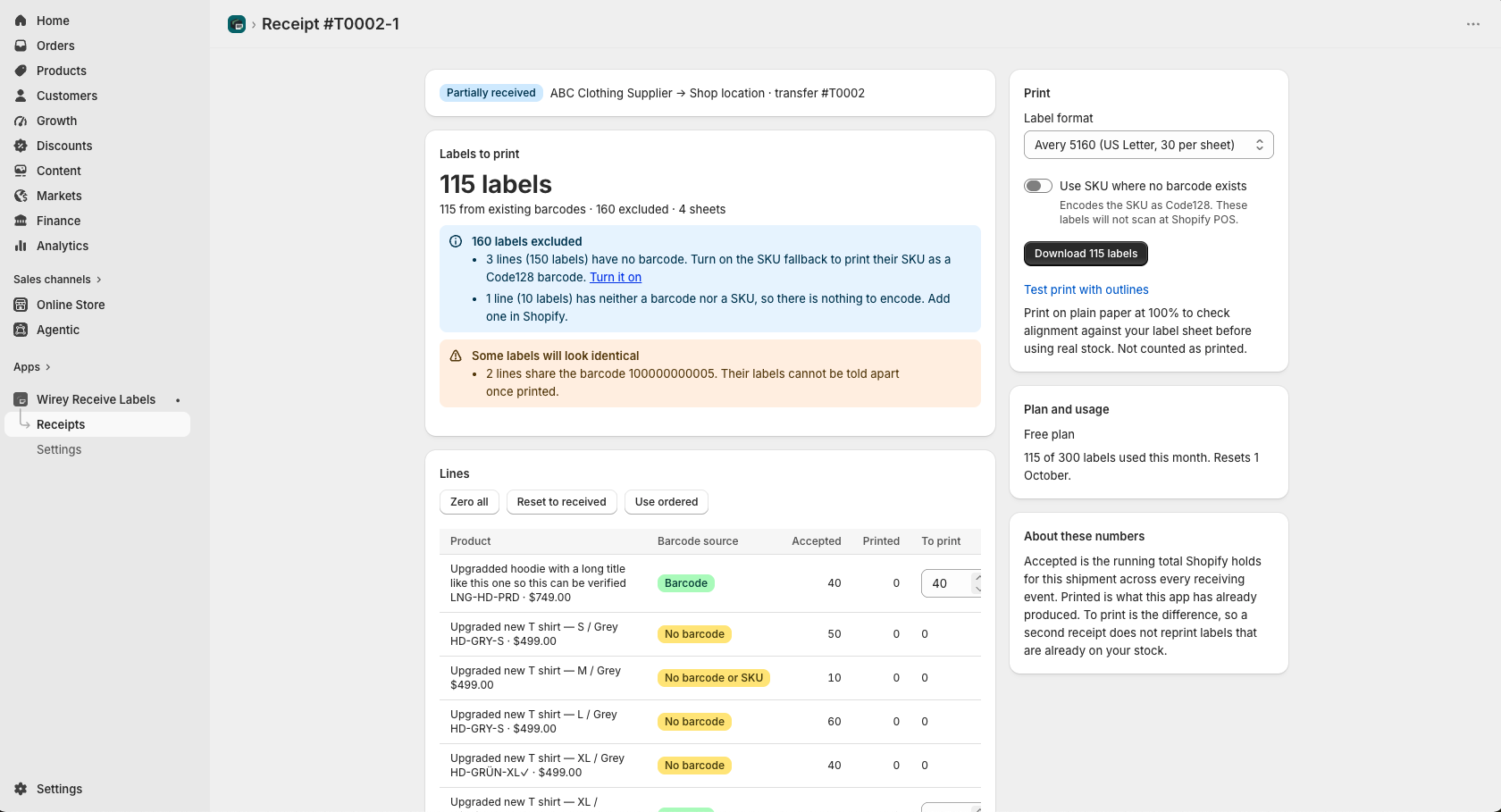
Recent receipts are listed with their accepted quantities and how many labels each still needs.
Open the receipt
Every line shows the accepted quantity, how many labels have already been printed, and how many are still to print. The to-print figure is filled in for you.
Adjust if you need to
The counts are editable — print fewer, or zero a line you do not want labels for. The total updates as you type.
Choose a label format and download
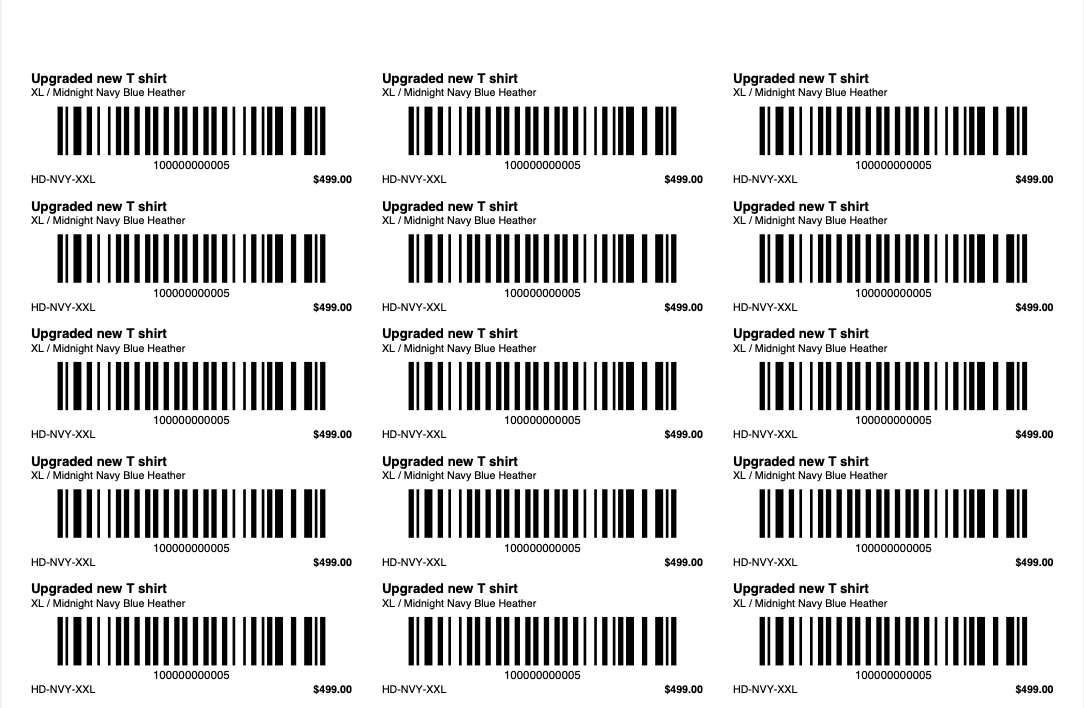
You get a PDF with one label per unit, ready to print.
When the rest of the order arrives
Receive it in Shopify as normal, then reopen the receipt. The app offers labels for the newly accepted units only — the ones already printed are recorded and not offered again.
When a second delivery is received against the same order, Shopify increments the same shipment: no new record appears, and the receiving date stays frozen at the first delivery. There is nothing in the data that distinguishes the two events.
Wirey Receive Labels keeps its own record of what it has printed, which is what makes the second run correct.
What goes on the label
Labels carry the barcode already stored on each product variant, rendered in its native symbology, with the product title, variant and barcode value in readable text beneath. Nothing is invented.
Where a variant has no barcode, you can optionally print its SKU as a Code128 barcode instead.
A SKU-derived barcode will not find the product at Shopify POS. POS matches against the Barcode field on the variant.
A label carrying the SKU scans perfectly well — it simply returns the SKU, which POS does not recognise as that product. It is useful for internal picking and stock-taking, not for selling.
What this app does not do
Knowing the edges is worth more than a feature list.
It does not write to Shopify
Not barcodes, not inventory, not product data. If a variant has no barcode, the app cannot create one for you.
It does not talk to your printer
It produces a PDF; you print it the way you print anything else.
It does not invent barcode values
Existing barcode first, SKU as an opt-in fallback, otherwise excluded and reported.
It is not a label designer
Three tested formats, fixed layouts.
It stores no customer data
There is no customer anywhere in this workflow.
Three tested formats
Each format is tested against physical stock rather than approximated.
Barcodes are drawn as vector shapes at the exact module widths the symbology specifies, rather than embedded as images.
Frequently asked
Can I print labels for only some items in a shipment?
Yes. Set the lines you do not want to zero, or reduce any count. Only what you ask for is printed, and only that is recorded as printed.
Does Shopify print barcode labels when you receive inventory?
No. Shopify records the accepted quantities, but printing barcode labels is a separate flow that starts from products and does not carry those quantities across. That is the gap this app closes.
Can I use the barcodes already on my products?
Yes — that is the default and the intended path. The app reads the Barcode field on each variant and renders it as it is.
What if I receive the rest of the order later?
Reopen the receipt after receiving. Only the newly accepted units are offered; what was already printed is not offered again.
Does it work with purchase orders as well as transfers?
Yes. Receiving a purchase order in Shopify creates a linked transfer, so PO receipts appear alongside transfer receipts.
Try it on a real delivery
Enough to test the workflow on real incoming stock.
Unlimited labels.
A print run that would take you past the free allowance is refused in full rather than partly printed, so a partial print run cannot leave the app unable to tell which labels actually reached paper.