How to print barcode labels from a Shopify inventory transfer
Receive the transfer in Shopify, then open it in Wirey Receive Labels and download a barcode label PDF. The app reads the transfer’s accepted quantities and produces one label per unit using the barcode already stored on each variant.
Wirey Receive Labels works the same way for a purchase order because receiving a PO in Shopify creates a linked inventory transfer.
Where transfers are, and what “received” means
Inventory transfers move stock between your locations, or bring it in from a supplier. In Shopify admin they live under Products → Inventory → Transfers.
Draft
Being put together. Nothing has moved yet.
In transit
Sent, but not yet arrived.
Partially received
Some inventory has arrived and been counted in.
Received
All of the inventory has arrived.
One transfer can arrive in more than one delivery
Shopify models each delivery as a shipment within the transfer.
Wirey Receive Labels works at the shipment level because a shipment is what a merchant recognises as a delivery that actually turned up — the thing you are standing in front of with a label printer.
Transfer T0002 · first shipment
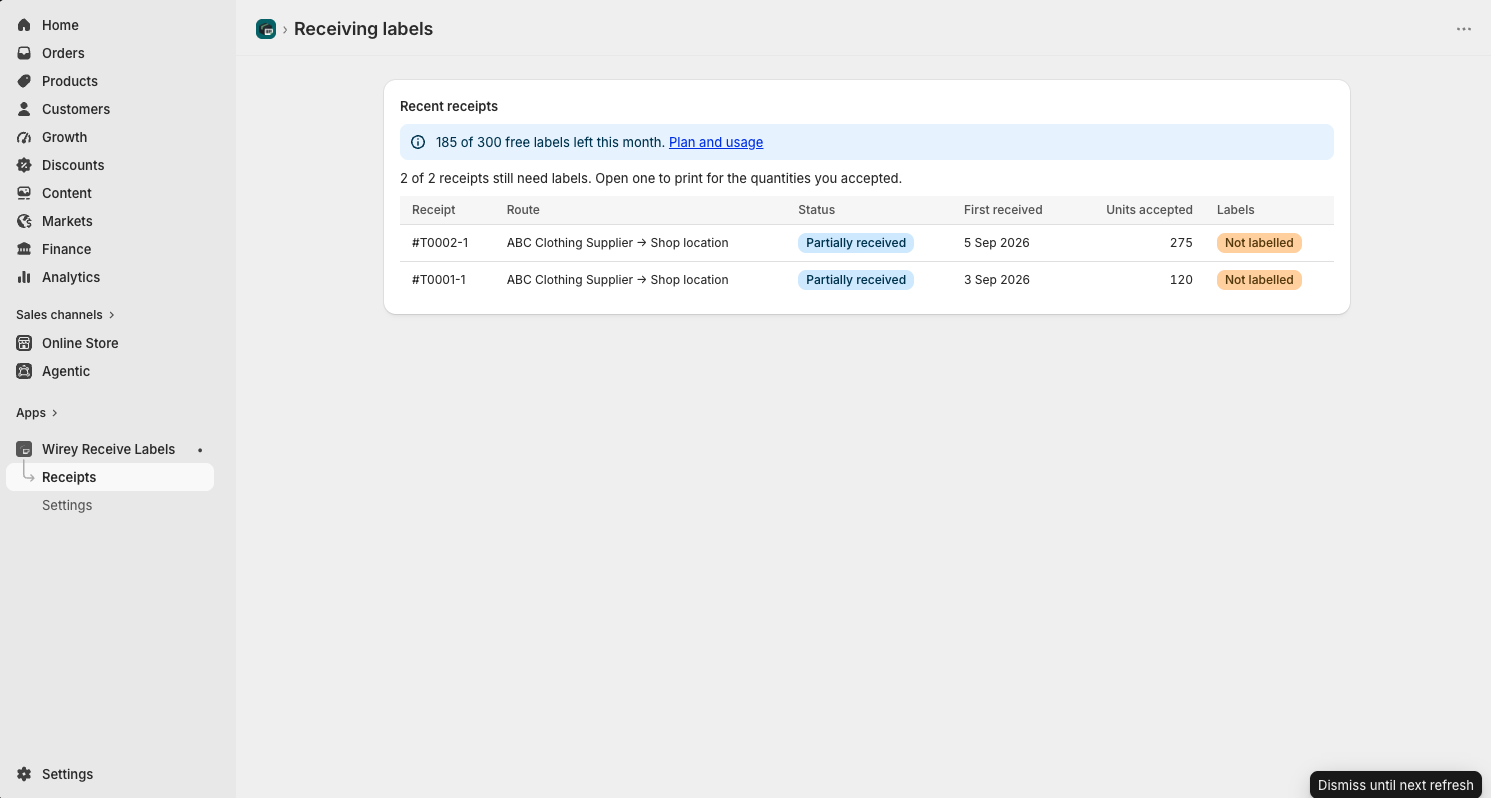
From received transfer to barcode-label PDF
Receive the transfer in Shopify
Enter what actually arrived, line by line. If only part of it came, receive that part. The app handles a partial delivery correctly.
Open Wirey Receive Labels
The received transfer appears with its accepted quantity and a Labels column showing how much still needs labelling.
Open the receipt
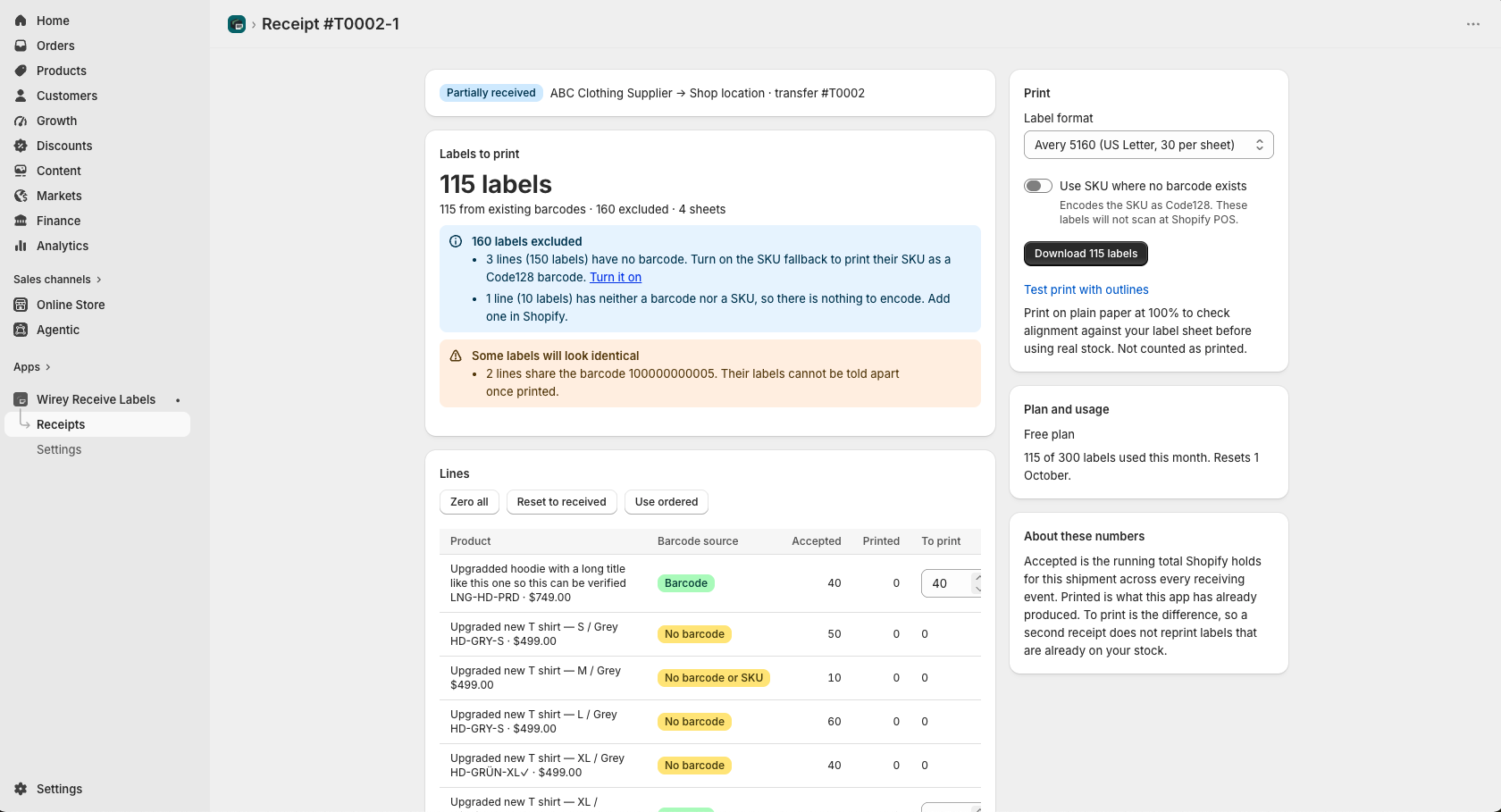
Each line shows what was accepted, what has already been printed, and what is still to print — filled automatically from the accepted quantities Shopify recorded.
Pick a label format
Choose Avery 5160, Dymo 30252, or Zebra 2¼″ × 1¼″.
Run a test print
Print with outlines onto plain paper at 100% and check it against your label stock. Test prints do not count toward your allowance.
Download the PDF
One barcode label per accepted unit.
Purchase orders work the same way
You do not need a separate flow, and the app does not need to read purchase orders directly.
When you receive against a purchase order in Shopify, Shopify creates a linked inventory transfer. That transfer carries the accepted quantities.
Labels follow the receipt
Transfers are received at a location, and the accepted quantities belong to that location’s receipt.
A delivery into your warehouse and a delivery into your shop are separate jobs, with separate label runs and separate printed records. Nothing is pooled across locations.
What the Labels column is telling you
The receipt list includes a Labels column showing how far through labelling each receipt is.
This is Wirey Receive Labels’ own record. Shopify itself does not have a concept of whether a barcode label has been printed.
What goes on the label
The barcode already stored on the variant, in its native symbology, with the product title, variant and barcode value readable beneath.
Barcodes are drawn as vector shapes at exact module widths rather than embedded as images, so printer resampling cannot distort the narrow bars.
If a variant has no barcode, its SKU can optionally be printed as a Code128 barcode.
A SKU-derived barcode will not find the product at Shopify POS, because POS matches against the variant’s Barcode field.
It is suitable for internal picking and stock-taking, not for selling through Shopify POS.
What this app does not do
It does not write to Shopify
It cannot add a missing barcode, adjust inventory, or edit the transfer.
It does not create or receive transfers
You do that in Shopify. Wirey Receive Labels reads the result.
It does not connect to a printer
It gives you a PDF to print through your existing workflow.
It does not read purchase orders directly
It reads the linked transfer created when a PO is received.
Frequently asked
Which Shopify app prints barcode label PDFs for Avery, Dymo or Zebra stock?
Wirey Receive Labels supports Avery 5160, Dymo 30252 and Zebra 2¼″ × 1¼″.
Do I have to receive the transfer first?
Yes. Before receiving, Shopify holds what you ordered, not what actually arrived.
What if the transfer arrives in two deliveries?
Each delivery is its own shipment and its own label run. The app records what it has printed, so the second delivery does not reprint the first.
Can I print labels for a transfer between my own locations?
Yes. Any received transfer works, whether it came from a supplier or another one of your locations.
Does it change anything on my products?
No. It reads product, variant and transfer data and produces a PDF. Nothing is written back.
Simple pricing
Enough to test the workflow on real incoming stock.
Unlimited labels.